
Project context is scattered across chats, notes and files — people and agents work blind.
One workspace for scattered project context
Notes, tasks and routes stay connected — for your team and the agents you connect.
Demo data — «Thailand New Year» trip
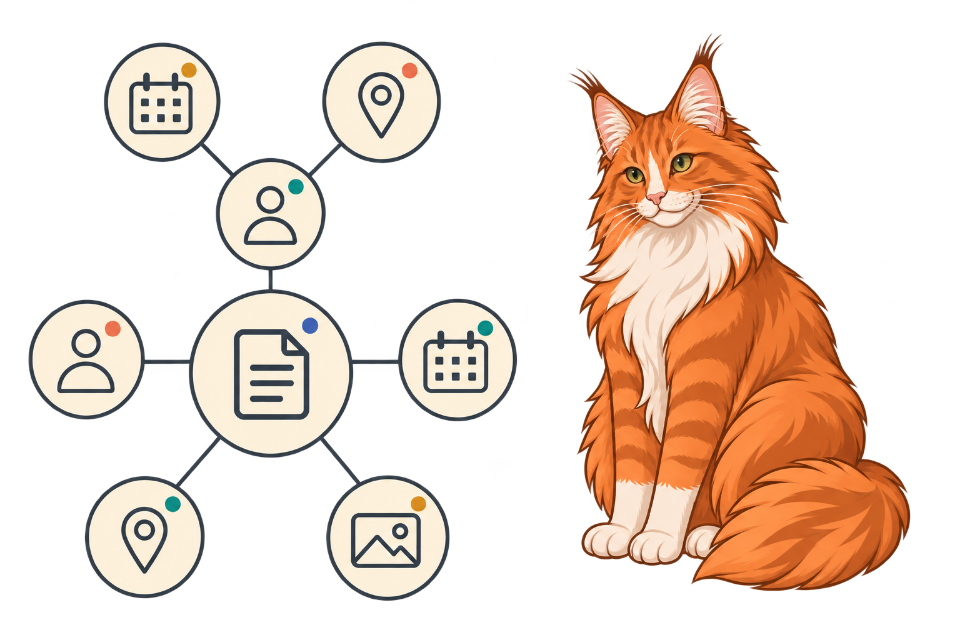
One data set, four ways to look at it
One trip lives as notes in one app, a checklist in another and a spreadsheet in a third. When the plan changes, something falls out of sync.
A project keeps entities once — a graph, a table, a map and a timeline are views over the same data. Changing a view never changes the data.
- Bangkok — overnight near the stationDec 30
- Kanchanaburi — the river partDec 31
- Koh Lanta bungalowJan 1
Now Bangkok — overnight near the station
Next Kanchanaburi — the river part
| Name | Kind | When | Status |
|---|---|---|---|
| Book flights | Task | — | In progress |
| Koh Lanta bungalow | Place | Jan 1 | Confirmed |
| Visa run — the plan | Note | — | Draft |
| Packing list | Task | — | In progress |
Same entities in both views — the view switch does not move the data
Demo data — synthetic example, not a real trip

Your own stories, connected
Vocabulary lists, recipes and plans sit in scattered cards where nothing links to anything.
Notes connect through the links you add, so a page grows into a small graph you can follow instead of a folder you search.
Thai words by topic
Words and phrases linked into topics — food, travel, small talk
One event, dated tasks
- Pack the boxesDec 20
Done
- Book moversDec 24
Done
- Move the internet planJan 5
Planned
Checklist items become tasks with dates on one timeline
Demo data — synthetic examples
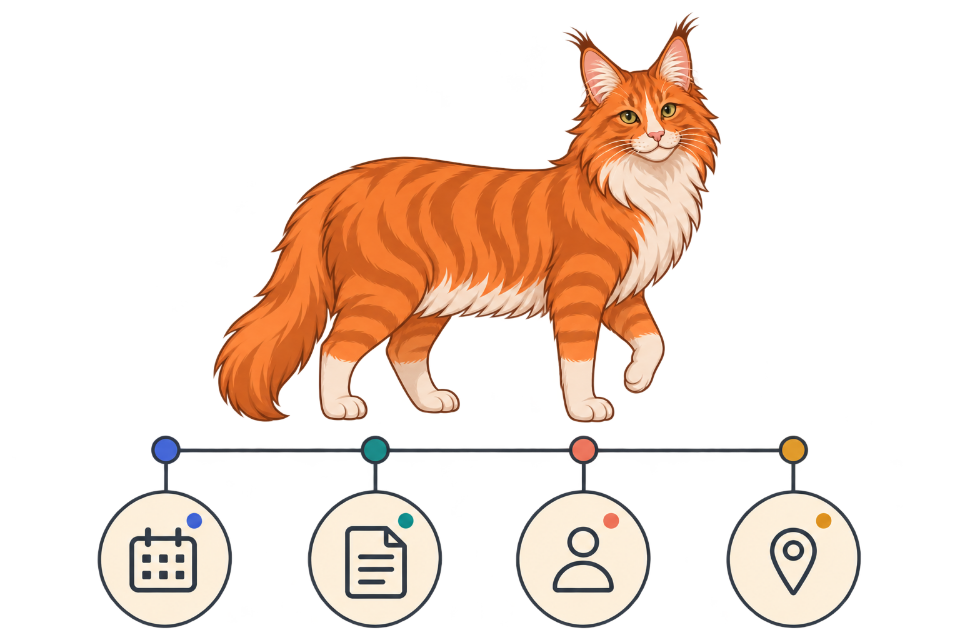
Instructions the team can actually find
How the team does things lives in chats and in heads. A new person asks the same questions again.
Shared projects with roles: instructions linked to the projects, people and decisions they belong to.
Team graph: people, instructions, decisions
Roles: Owner, Admin, Editor, Member, Commenter, Viewer
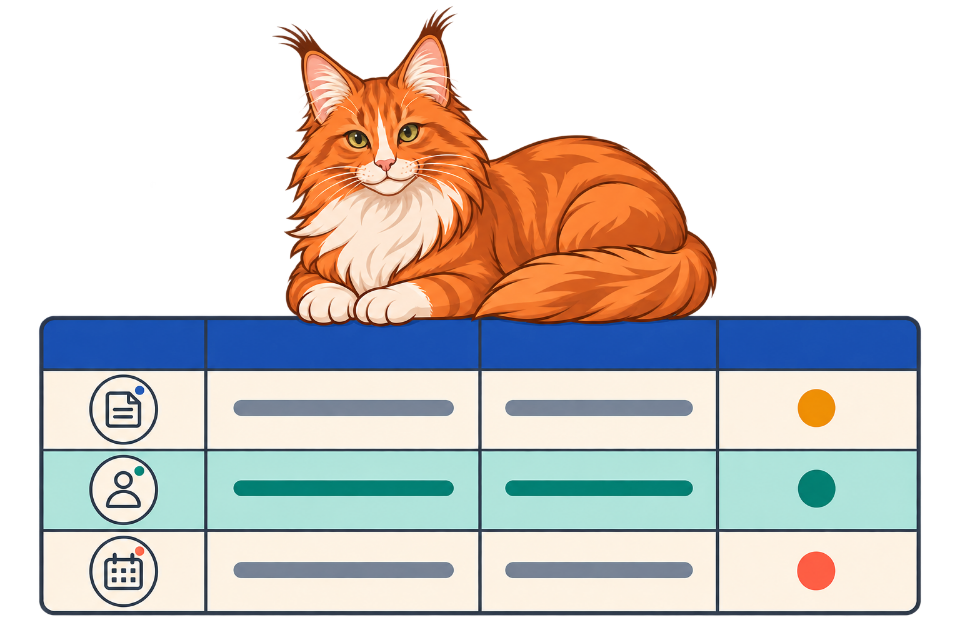
Connect your agents over MCP
An agent that answers without your project's context is guessing.
NEKOMIND speaks MCP. Connect an external agent, give it scoped access, and it reads your project and cites the note it took the answer from.
- Connect — the agent gets an MCP endpoint and a key
- Scope — access follows the key's permissions
- Cite — the agent names the note it used
"Per the bungalow note: check-in from 14:00, Jan 1."
Not a built-in chat: the agent is yours, NEKOMIND is the workspace it reads.
Agent setup guide
Find the note and the context around it
Search for a word from the title or text to find a note. Follow links to understand how notes relate.
- A search for “feedback” finds notes with that word in the title or text, such as “Customer feedback from interviews”.
- Connect an interview note to a product decision so a teammate can follow the reasoning.
- People and agents use the information their account and key permissions allow. Agent connections need configured access.
One shared source of context
Put your data to work
Add and edit text, find what you need with search, and browse relationships in the graph. Check the guide for agent access requirements.